Making Sense of Keyboard Shortcuts in Visual Studio 2026
Mads Kristensen takes an honest look at why changing keyboard shortcuts in Visual Studio 2026 is complicated, detailing the history, profiles, schemes, and technical trade-offs for developers.
Making Sense of Keyboard Shortcuts in Visual Studio 2026
Introduction
Changing keyboard shortcuts in Visual Studio seems simple, but it’s not just a matter of editing a keybinding. Years of developer workflows and muscle memory dictate how very specific shortcuts are used. For many, shortcuts like Ctrl+W are second nature, and changing them impacts productivity and habits formed over years.
One Command, Multiple Shortcuts
Visual Studio supports several shortcuts for the same command to cater to different backgrounds. For instance:
- Ctrl+F4: Traditional shortcut to close a tab (Windows-era standard)
- Ctrl+W: Used to close tabs in Chrome, VS Code, but in Visual Studio, it selects the current word
The IDE maintains this duality for flexibility while guarding against disrupting workflows for existing users.
Developer Profiles
When initializing Visual Studio, you select a developer profile (General, Web, C#, C++, etc.), which dictates your default shortcuts and layout. Each profile can assign different shortcuts for the same command:
- Build Solution in C# profile: F6
- Build Solution in General profile: Ctrl+Shift+B
This profile-based approach stems from the desire to honor both legacy and modern coding styles.
Keyboard Schemes
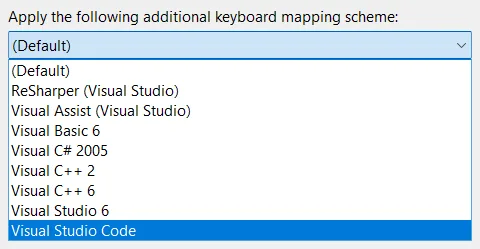
Visual Studio offers keyboard schemes that mimic other editors, such as VS Code or ReSharper. This helps developers switching from other platforms to maintain their muscle memory without starting from scratch.
The Intent Behind the Shortcut
Changing shortcuts isn’t as simple as analyzing telemetry. While data shows which shortcuts are used and when, it can’t discern what users expect the shortcuts to do. This difference between observed usage and intent means remapping a shortcut could inadvertently break someone’s existing workflow.
Scopes
Shortcuts operate within scopes—specific contexts in the IDE. For example:
- Global Scope: Applies to all contexts
- Text Editor Scope: Applies only when editing code
A shortcut like Ctrl+W might close tabs globally but select a word in the editor. Remapping shortcuts requires careful consideration of which scopes take priority to avoid unintended side effects.
Sequenced Shortcuts
Visual Studio supports sequenced shortcuts (multi-key combos):
- Example: Ctrl+E, Ctrl+W toggles word wrap in the Text Editor scope
- Binding Ctrl+E by itself breaks all following sequences
Every change must account for these chains to prevent disrupting multi-step commands.
The Balancing Act
Adding or changing shortcuts in Visual Studio means analyzing the impact on all users, considering muscle memory, habits, and the broader shortcut ecosystem. When remapping Ctrl+W to close tabs, other commands must be reassigned to avoid leaving anyone stranded.
Ctrl+W in Visual Studio 2026
In Visual Studio 2026, Ctrl+W can be set to close the current tab, aligning with modern tools. For users of the C# profile, this change isn’t forced to avoid breaking established habits and sequences. Custom keybindings remain easily accessible for those who want to tailor the experience.
What’s Next?
The team is looking for input on shortcut improvements—developers are encouraged to comment with the combos they’d like to see, helping shape future releases.
References:
Conclusion
Visual Studio’s shortcut management is built around developer experience and history. Customization and adaptability remain core values, but every change must balance legacy workflows with new standards.
This post appeared first on “Microsoft VisualStudio Blog”. Read the entire article here