Azure MCP Server Now Built-In with Visual Studio 2026: Agentic Cloud Automation for Developers
Yun Jung Choi introduces the built-in Azure MCP Server integration with Visual Studio 2026, enabling developers to automate Azure resource management and CI/CD workflows via AI-native tools, secure practices, and natural language in their IDE.
Azure MCP Server Now Built-In with Visual Studio 2026: Agentic Cloud Automation for Developers
Managing cloud resources traditionally involves juggling multiple tools, writing scripts, and switching between IDEs and cloud portals. With Visual Studio 2026, Microsoft closes the gap: Azure MCP Server (Model Context Protocol) tools are now available out-of-the-box, enabling developers to interact with Azure resources securely using natural language.
What Is Azure MCP Server?
Azure MCP Server is a standards-based protocol server, built for agentic, AI-assisted cloud automation. It allows:
- Secure access and management of Azure resources by AI agents
- Automation of cloud operations via natural language queries
- Streamlined team productivity without custom integration overhead
Supported resource interactions include:
- Azure Kubernetes Service (AKS)
- Azure Container Apps
- Cosmos DB
- AI Foundry
- And more
Key Features in Visual Studio 2026
- AI-Native IDE: Visual Studio 2026 is designed for intelligent, context-aware development.
- Code and Infrastructure Generation: Turn natural language prompts into ready-to-use Azure-related code and IaC templates.
- Resource Management: Query, monitor, and apply best practices for cloud resources directly from the IDE.
- Troubleshooting: Direct, in-IDE access to resource logs, diagnostics, and telemetry.
Expanded Azure Development Tooling
Beyond MCP, VS 2026 introduces:
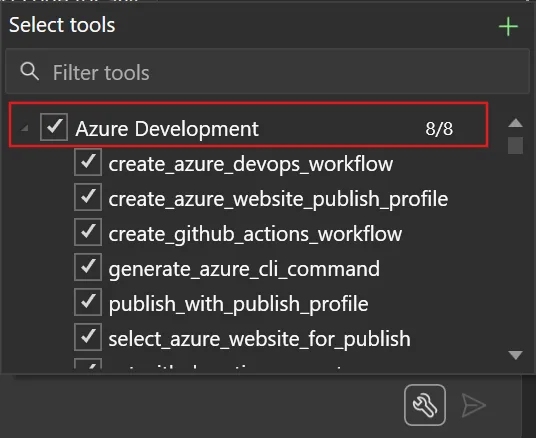
- Automated CI/CD Setup: Instantly generate Azure DevOps or GitHub Actions workflows for ASP.NET, Blazor, or Functions projects—complete with validated YAML and securely managed credentials.
- Effortless Publishing: Easily create and select Azure publish profiles and deploy through natural language prompts.
- Azure CLI Generation: Convert requests and task descriptions into accurate Azure CLI commands using Copilot.
Getting Started
- Download Visual Studio 2026 or Insiders Edition and run the installer.
- In the Installer, select the Azure and AI development workload and enable GitHub Copilot.
- Complete setup, launch VS 2026, and open/create your project.
- Open GitHub Copilot Chat, select available Azure and MCP Server tools (from the tools icon menu).
For full guidance, see Get started with GitHub Copilot for Azure.
Why It Matters
This direct integration means:
- Less context-switching for cloud operations
- AI-driven automation in familiar workflows
- Fewer manual steps and custom scripts
- Built-in secure access and enterprise-grade practices
Developers can now focus on innovation, letting intelligent tools handle operational complexity while maintaining security and compliance.
Learn More
By Yun Jung Choi
This post appeared first on “Microsoft VisualStudio Blog”. Read the entire article here